In order to obtain the resolution time and unresolved tickets in the Helpdesk system, you can follow the below steps:
- Access the Analytics tab in your Freshdesk account.
- Locate and select the New Report option (applicable if you are on the Pro or Enterprise plan).
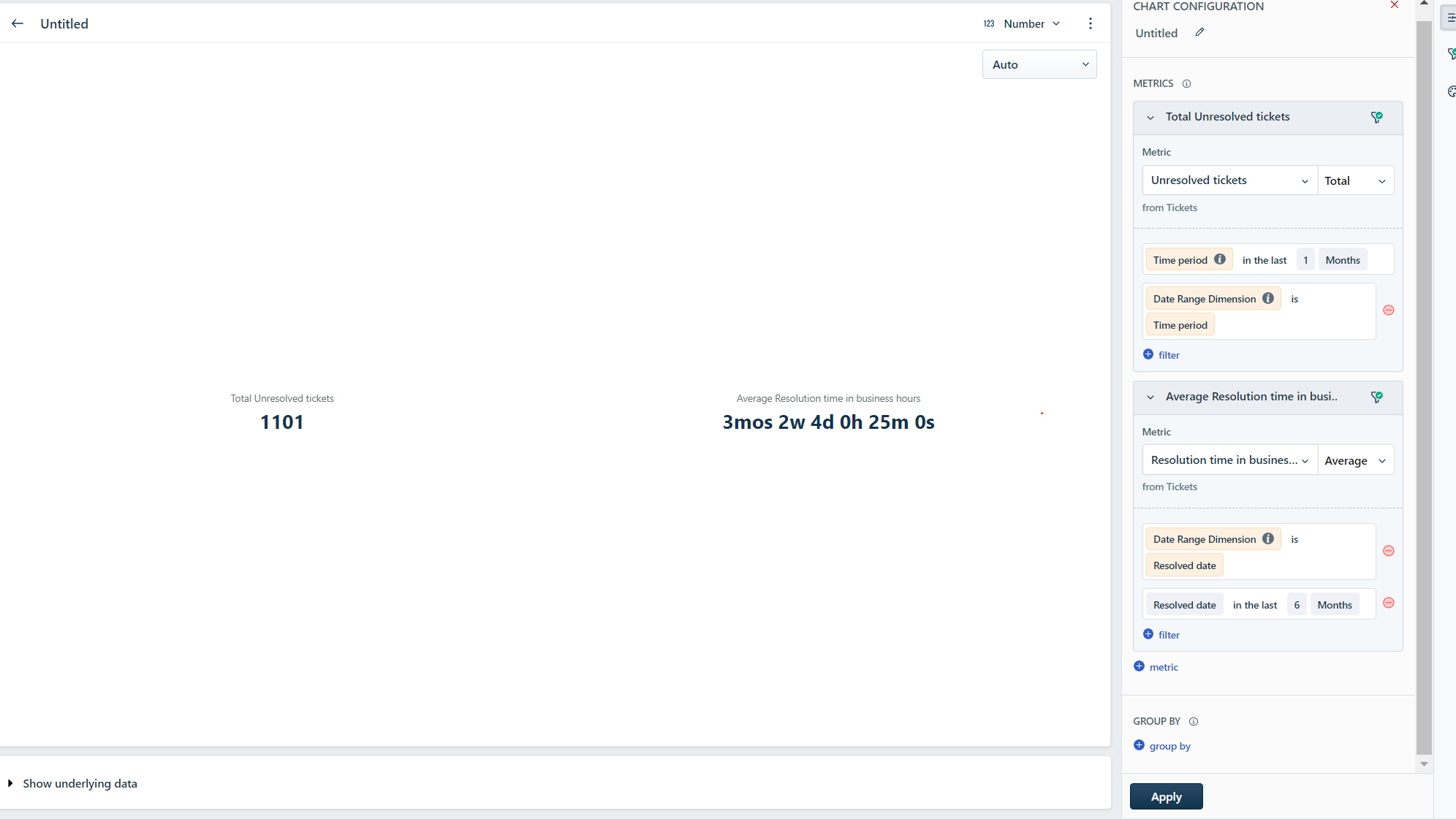
- Add a widget to the report that specifically focuses on the Unresolved ticket and Resolution time metrics. This widget will allow you to visualize and analyze the related data.
- Optionally, you can click on the Show Underlying data feature to access detailed information at the ticket level.
- Choose the columns that will be displayed in the exported file by selecting the relevant ticket fields.
- Save the report to retain your configurations.
- If necessary, initiate an export of the report to obtain the desired data.
- Once the export is completed, you will be able to access the exported file and review the ticket level data, if required.
Adding a screenshot for reference:
Alternatively, you can also make use of the Helpdesk Ticket Volume curated report to fetch the Unresolved tickets and the Helpdesk Performance curated report to get the resolution time.
Was this article helpful?
That’s Great!
Thank you for your feedback
Sorry! We couldn't be helpful
Thank you for your feedback
Feedback sent
We appreciate your effort and will try to fix the article