TABLE OF CONTENTS
- Enabling IMAP and SMTP at the mailbox level
- Configuring O365 shared mailbox
- Troubleshooting errors with the O635 setup
Enabling IMAP and SMTP at the mailbox level
- Log in to O365 Admin Center using O365 admin credentials.
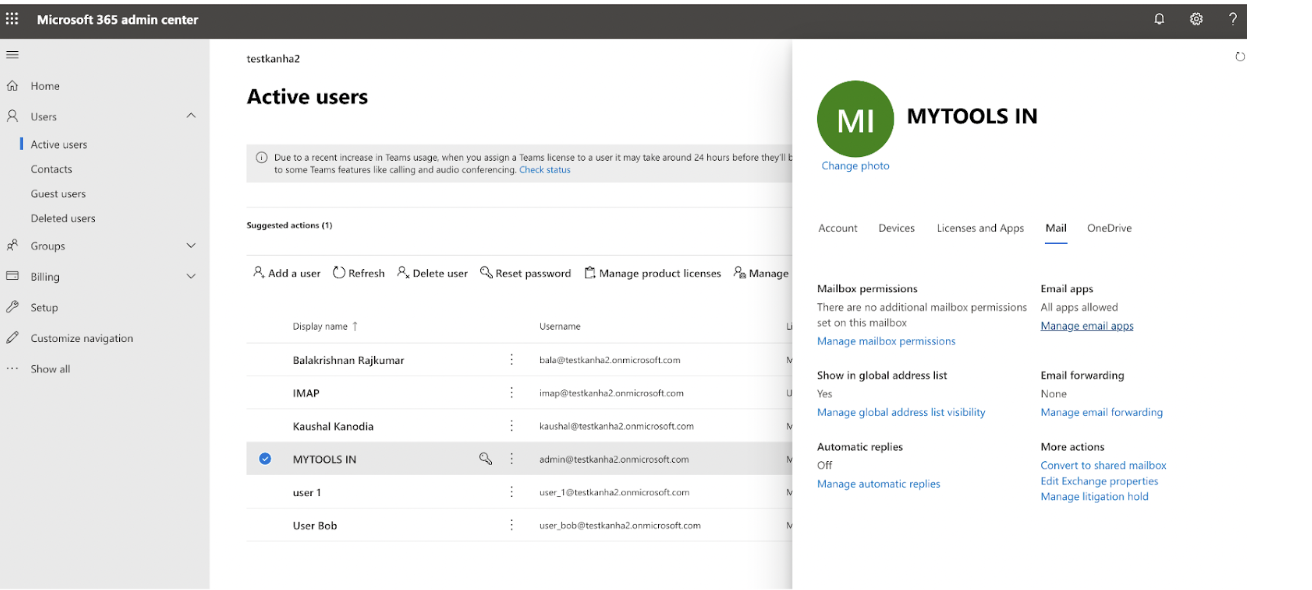
- Navigate to Users → Active Users and click on the email address for which the custom mailbox is configured.
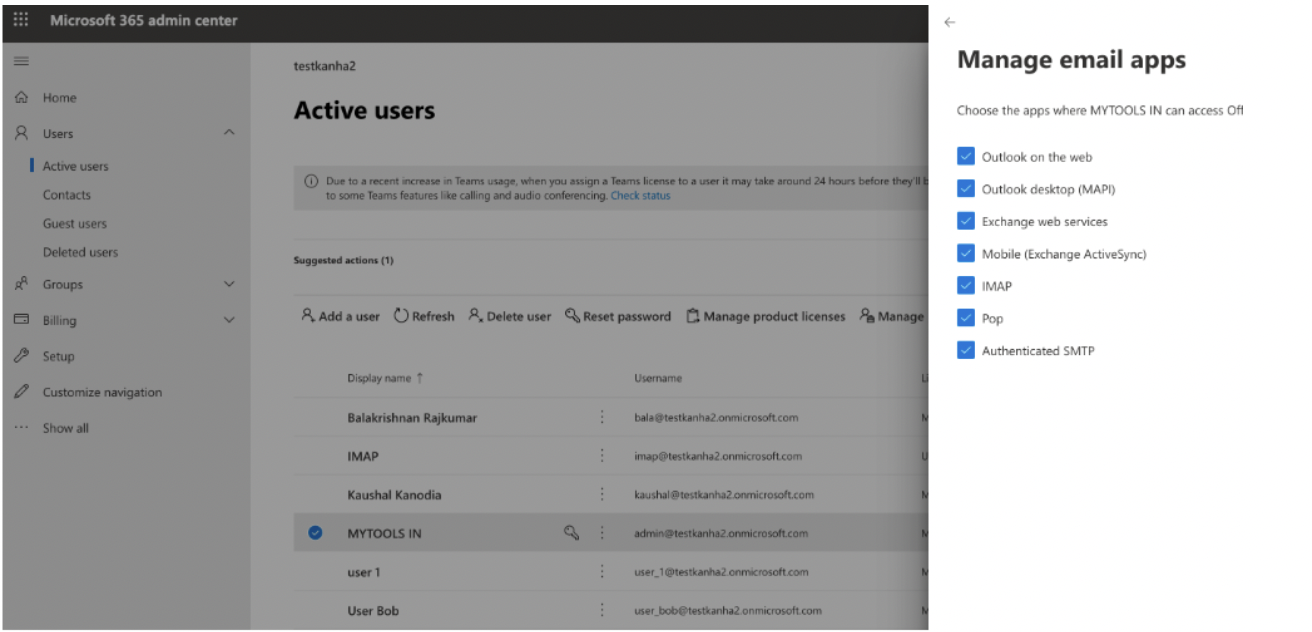
- In the pop-up window that comes navigate to "Mail → Manage email apps"
- In the "Manage email apps" window ensure "IMAP" and "Authenticated SMTP" are enabled.
Configuring O365 shared mailbox
Shared mailbox is supported in IMAP and SMTP. The email address should be in the following format, admin@testkanha2.onmicrosoft.com\imap@testkanha2.onmicrosoft.com or admin@testkanha2.onmicrosoft.com\imap
- Here 'admin@testkanha2.onmicrosoft.com' is the email address of the user who has access to the shared mailbox. 'imap@testkanha2.onmicrosoft.com' / 'imap' is the email address/username of the shared mailbox.
Troubleshooting errors with the O635 setup
1. Request customers to test connectivity for an O365 mailbox, We can share the below link to do the same,
https://testconnectivity.microsoft.com/Default.aspx?testId=o365Imap
2. If the results are successful and if it still fails to connect, we can raise an L2 ticket.
If Firewall is enabled at the customer's end, please share the NAT IPs and product IPs to be whitelisted: https://confluence.freshworks.com/display/PLAT/Mail+Service+IP+Details https://support.freshdesk.com/a/solutions/articles/223403
Was this article helpful?
That’s Great!
Thank you for your feedback
Sorry! We couldn't be helpful
Thank you for your feedback
Feedback sent
We appreciate your effort and will try to fix the article