Possible Queries:
Resolution Path:
Is it possible to log the time an agent works on a ticket?
Yes, it is possible. We can suggest the customer follow the below steps:
- From any ticket, click More > Log time.
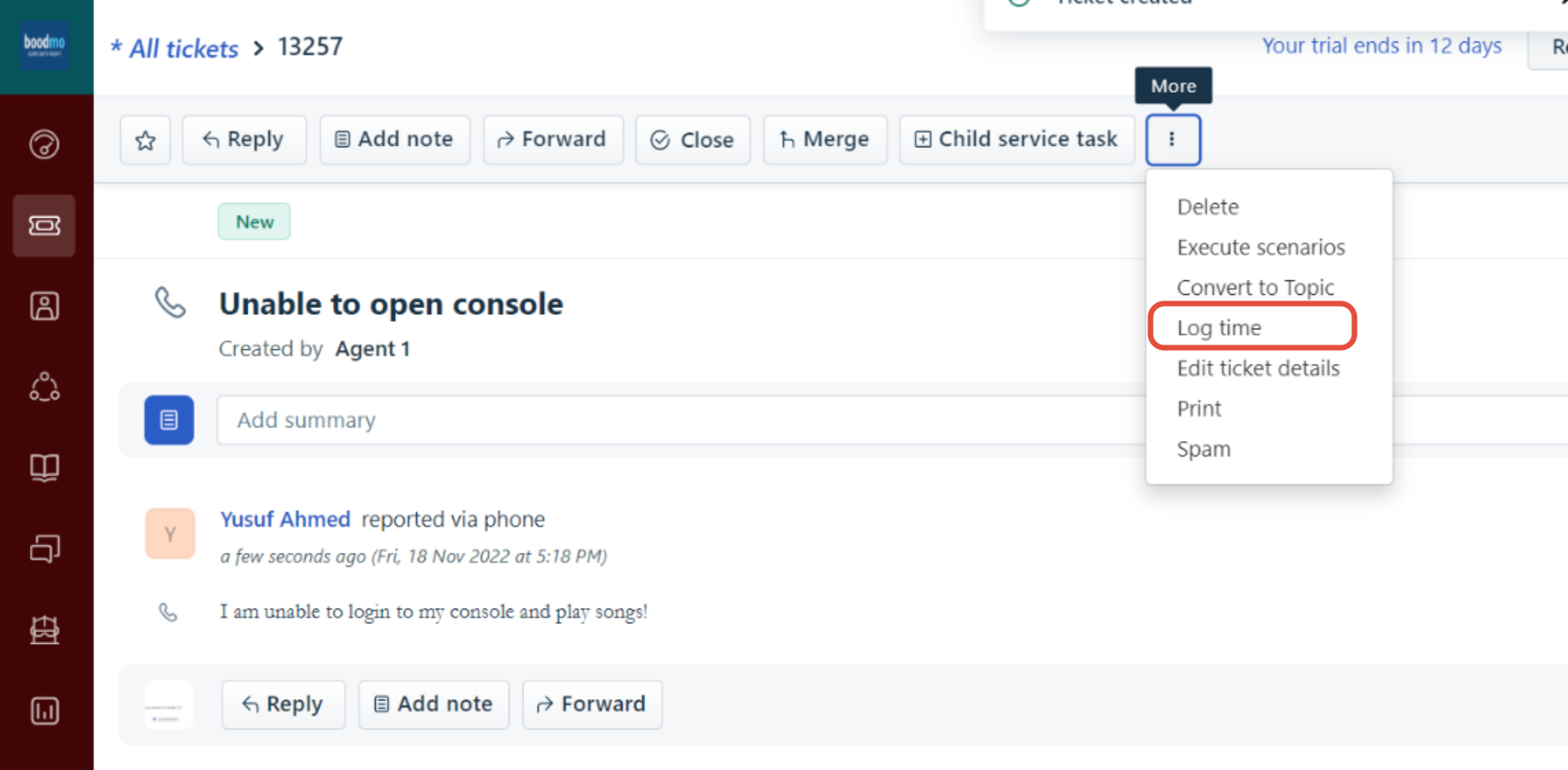
- To start tracking time, click Start Timer and continue working on the ticket.
- A new time entry will be added to the ticket, and the timer will begin.
- Click Stop in the time entry to stop the timer (and Start to resume).
- Click Edit to edit your timesheet entry manually.
- Check Billable to log this entry as billable in your timesheet reports; otherwise, time spent will be non-billable.
- Click Save when done.
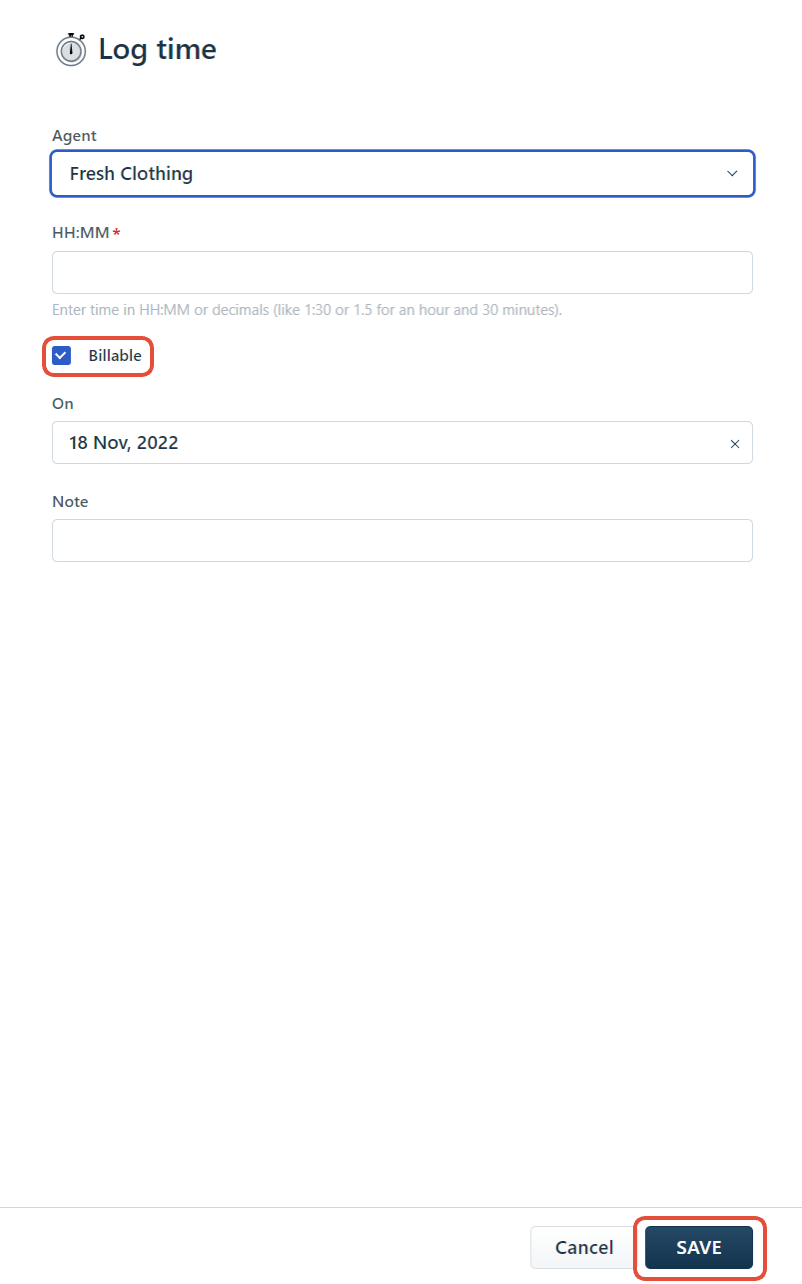
Also, if the customer wants to manually add time, we can suggest them follow the below steps:
- From any ticket, click More > Log time.
- Enter the amount of time spent on this ticket under HH:MM.
- Add comments or details of activities done under Note.
- Click Save to record this time entry.
- You can edit previously logged time entries by clicking Edit.
If the customer wants to automatically start/stop the timer, we can suggest the Auto start timer app.
Was this article helpful?
That’s Great!
Thank you for your feedback
Sorry! We couldn't be helpful
Thank you for your feedback
Feedback sent
We appreciate your effort and will try to fix the article