A quick guide to using Audit Log:
Log in to your Freshdesk account as an Administrator
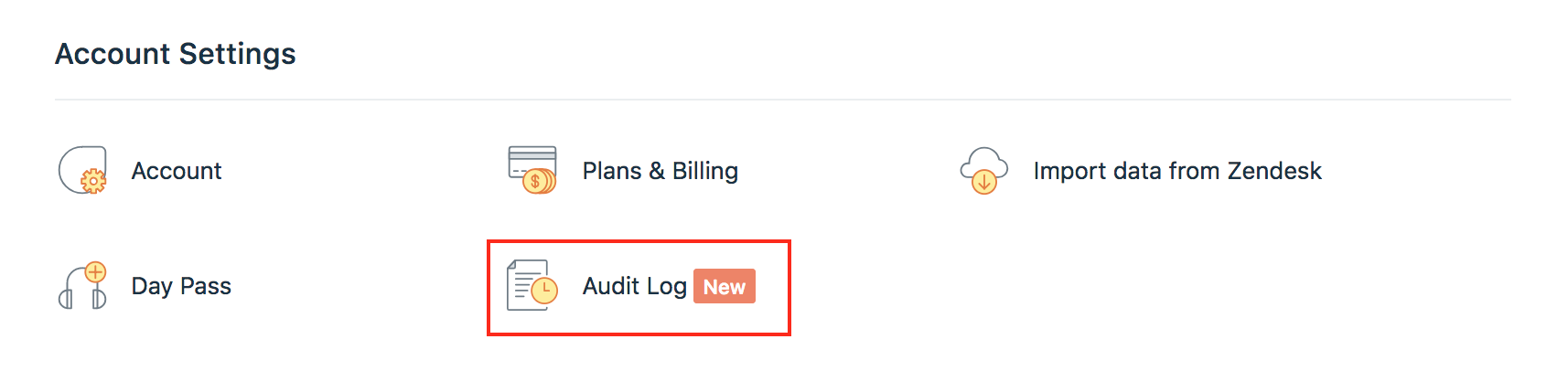
Go to the Admin tab and click on ‘Audit Log’ under Account Settings
- The list of changes performed on the helpdesk, across the mentioned modules, by the Admins will be displayed

The ‘Performed by’ column will give you the name of the Admin who performed the action, the time and date when the action was performed, along with their IP address
Clicking their name will take you to their agent profile
The ‘Event’ column will give you details on the type of action performed — Created, Updated, or Deleted
The ‘What changed’ column will give you details of the change along with a link to that module
If an update was made to an existing automation rule, you will have an option to ‘View Changes’
Clicking ‘View changes’ will open out the slider, displaying in detail the original setup along with what was changed, in two distinct grids

Click the ‘Filter’ option to narrow down the changes made:
- during a specific time period
- by a specific Admin
- to any one specific module in the helpdesk

By default, the latest change made across these modules on the helpdesk will be displayed first in the list. Please refer this link for more details.
Was this article helpful?
That’s Great!
Thank you for your feedback
Sorry! We couldn't be helpful
Thank you for your feedback
Feedback sent
We appreciate your effort and will try to fix the article