A quick guide in creating a Customer Segments:
Login to your Freshdesk account as an Administrator
Click the Customers icon from the left panel and choose Contacts (or Companies)
Set the required filters under the Filters panel on the right and click ‘Apply’
Note: You would only be able to filter by the following custom customer fields, apart from the available fields in the filter panel:
Checkboxes
Number fields and
Dropdown fields
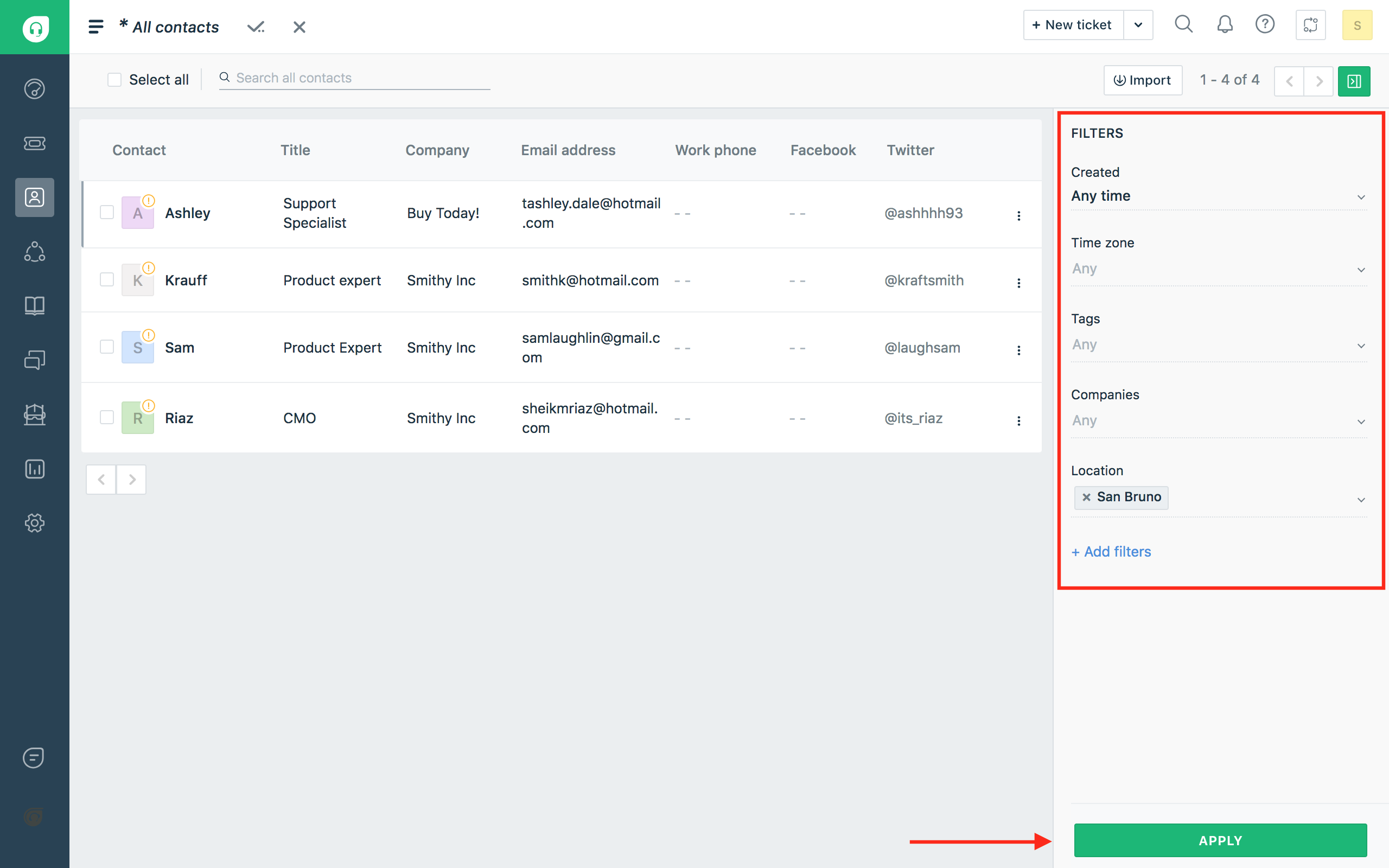
- Once the filters are applied, click the ‘Save customer segment as’ tick mark, give your segment a suitable name and save the segment

You will be able to access all the saved Customer Segments by clicking the hamburger menu in the Contacts/Companies list page
You can also edit the filters, if required, to modify and save the view
The ‘Edit’ button, represented by a pencil icon, near the name of the saved segment will let you rename the segment whenever required

Once you set it up, you can access these lists on just one-click when you want to fetch a list of specific customers.
You will be able to navigate up to 10 pages in a customer segment. Every page will list a default of 30 contacts/companies. If there are more contacts/companies in the segment, you can perform an export to view the entire list in that customer segment.
Was this article helpful?
That’s Great!
Thank you for your feedback
Sorry! We couldn't be helpful
Thank you for your feedback
Feedback sent
We appreciate your effort and will try to fix the article