As your support portal collects personal details like name, email, and phone number, it is imperative to protect this information from 3rd-parties with malicious intentions. Securing your domain with an SSL certificate encrypts the data your customers enter in your support portal, so only you will be able to read this data. When secured with an SSL certificate, your portal address will automatically change from http:// to https://.
If you are using a domain provided by Freshdesk (i.e., your portal address ends with “. “.freshdesk.com “), your support portal is automatically secured with an SSL certificate by default. If you host your support portal on a custom domain and don’t have an SSL certificate, Freshdesk will automatically approve and publish an SSL certificate for your domain.

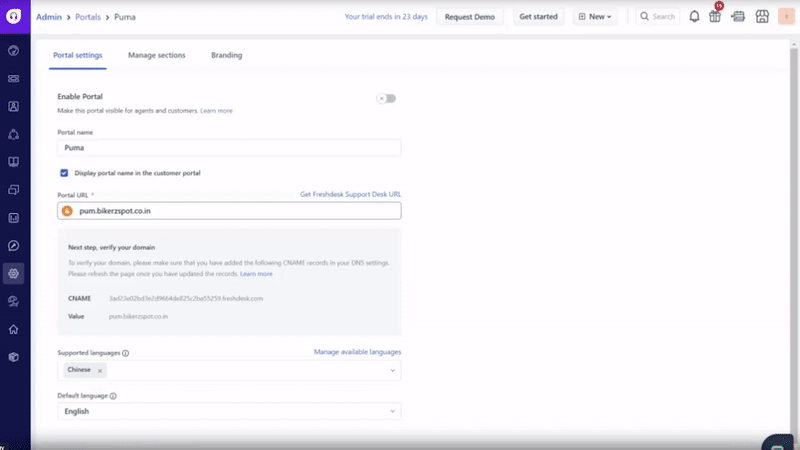
Once the SSL certificate is published, the lock icon next to the Portal URL will turn green, indicating that your portal is now secured.
Note: If you wish to use your own SSL certificate, please drop an email to support@freshdesk.com by attaching the certificate details in the email, and our team will help you get your portal secured.
Was this article helpful?
That’s Great!
Thank you for your feedback
Sorry! We couldn't be helpful
Thank you for your feedback
Feedback sent
We appreciate your effort and will try to fix the article